Navigate a session
After you open a session, its name appears at the top of the sidebar. The “Overview” brings together session shortcuts and indicators; the groups below it provide access to operational modules.
Use the overview
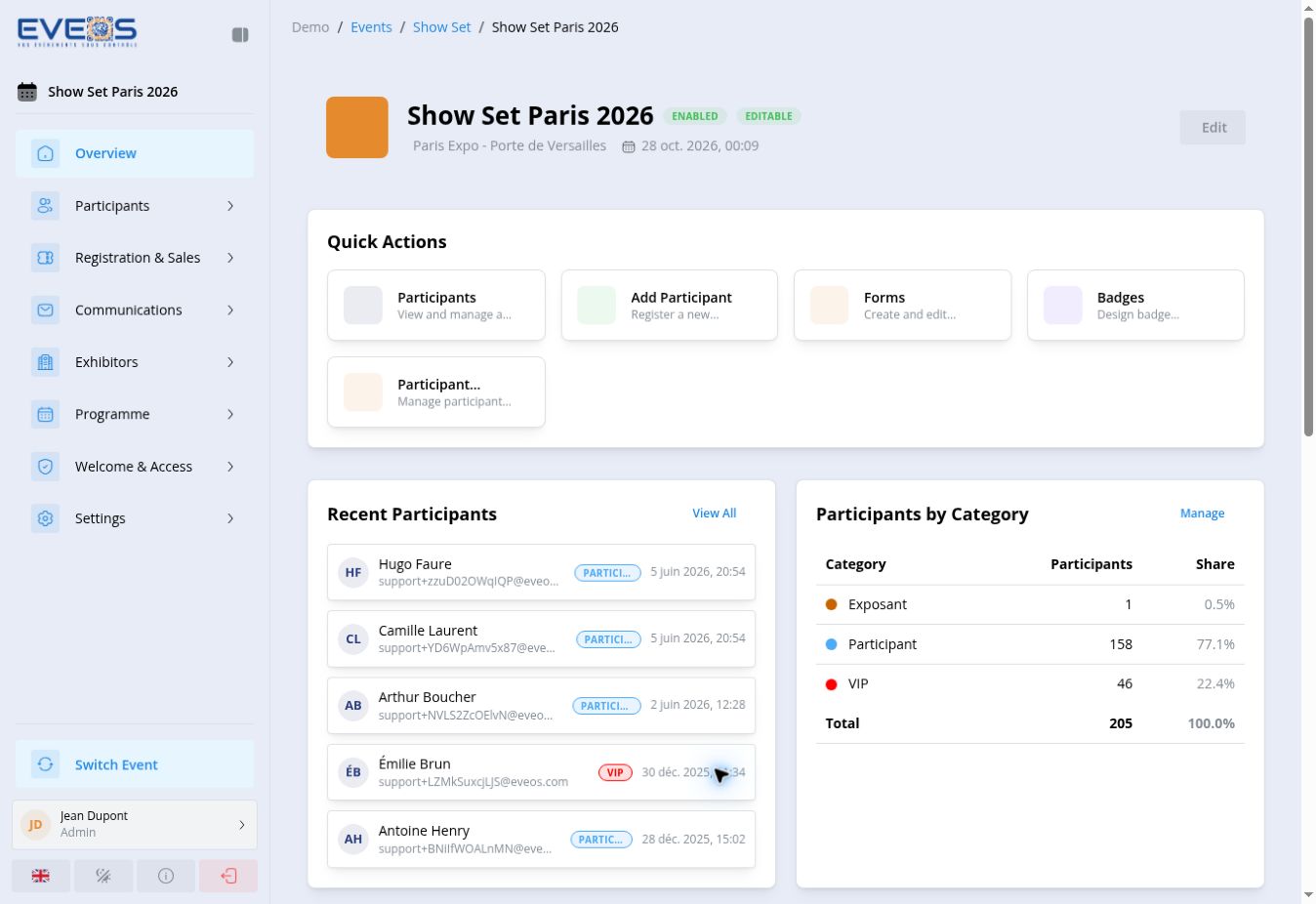
Section titled “Use the overview”The “Show Set Paris 2026” overview displays:
- “Quick Actions” for participants, adding a participant, forms, badges, and participant categories;
- “Recent Participants” and their category;
- “Participants by Category”;
- statistics filters and registration trends;
- ticket sales, with access to orders.
Find a module
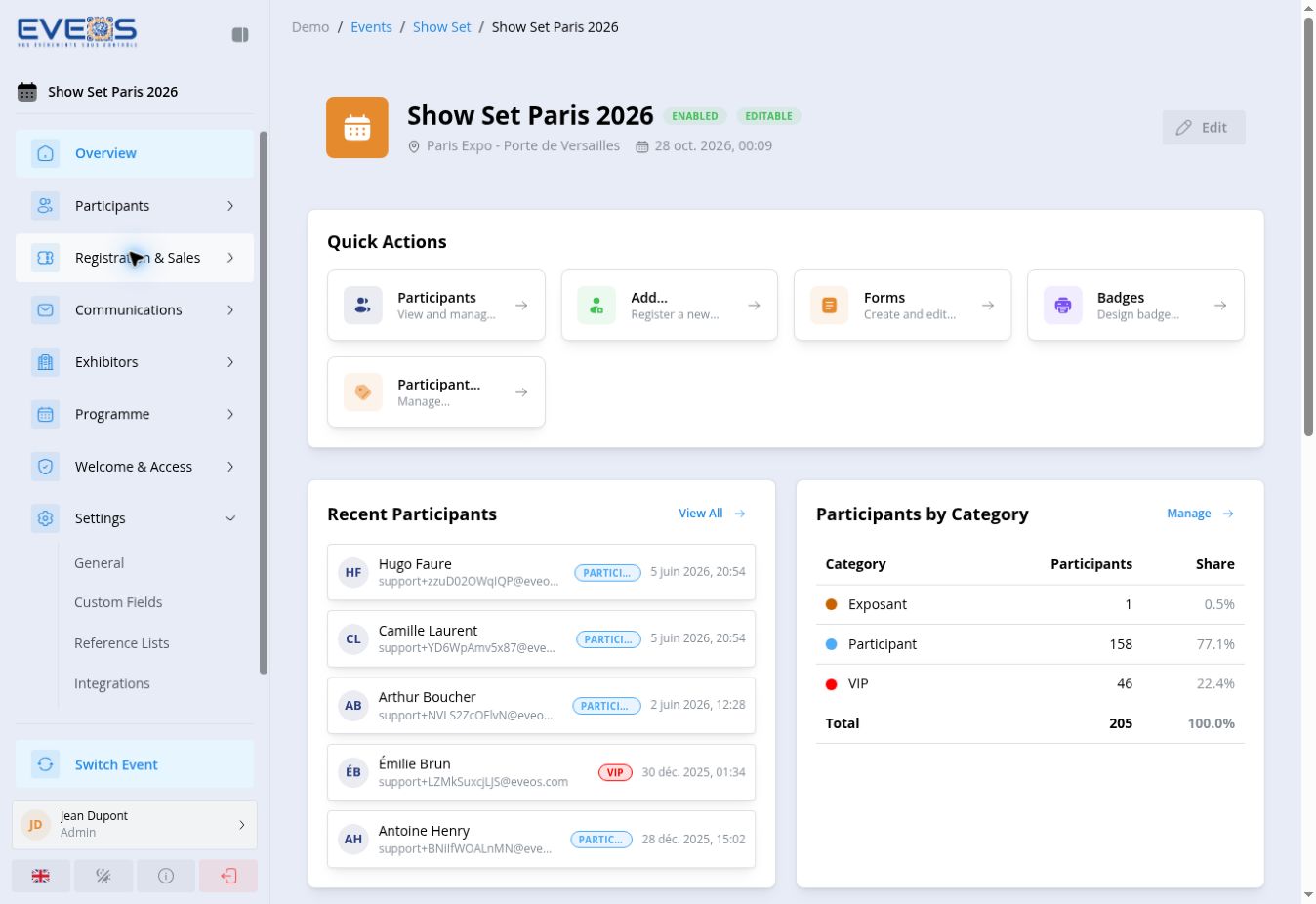
Section titled “Find a module”Select a group to display its submenus.
| Group | Visible submenus |
|---|---|
| “Participants” | “Participants List”, “Imports” |
| “Registration & Sales” | “Registration Flows”, “Registration Forms”, “Products”, “Orders”, “Promo Codes”, “Validation” |
| “Communications” | “Campaigns”, “Templates” |
| “Exhibitors” | “Exhibitors List”, “Import Exhibitors”, “Exhibitor Portals”, “EasyContact” |
| “Programme” | “Agenda”, “Speakers”, “Places”, “Categories” |
| “Welcome & Access” | “Badge Templates”, “Checkpoints”, “Check-ins”, “Devices” |
| “Settings” | “General”, “Custom Fields”, “Reference Lists”, “Integrations”, “Widgets” |
An extra “Modules” group appears when custom modules are active for the session. Visible entries depend on your permissions and on the features included in the subscription: modules that are not included appear locked.
Return to the event
Section titled “Return to the event”Select “Switch Event” at the bottom of the sidebar. The breadcrumb at the top of the page also provides links back to “Events” and the active event.