Manage your profile
The “My Profile” page displays the information associated with your Eveos account and provides controls for editing your profile or changing your password.
Before you start
Section titled “Before you start”- Sign in to Eveos.
- The page is available from the profile card at the bottom of the sidebar.
Open My Profile
Section titled “Open My Profile”- Select the card containing your initials, name, and email address at the bottom of the sidebar.
- Eveos opens “Settings” > “Profile”.
- Review the information displayed under “My Profile”.
Under “My Profile”, you can find:
- “First Name”
- “Last Name”
- “Email” — displayed but not editable
- “Phone”
- “Preferred Language”
- “Timezone”
Your avatar shows the image from the “Avatar URL” when set, or your initials otherwise.
Edit your profile
Section titled “Edit your profile”- On “My Profile”, select “Edit”.
- Update the relevant fields:
- “First Name” — required
- “Last Name” — required
- “Phone”
- “Avatar URL”
- “Preferred Language”
- “Timezone”
- Select “Save” to submit the profile changes, or “Cancel” to return without saving.
Fields marked with an asterisk are required.
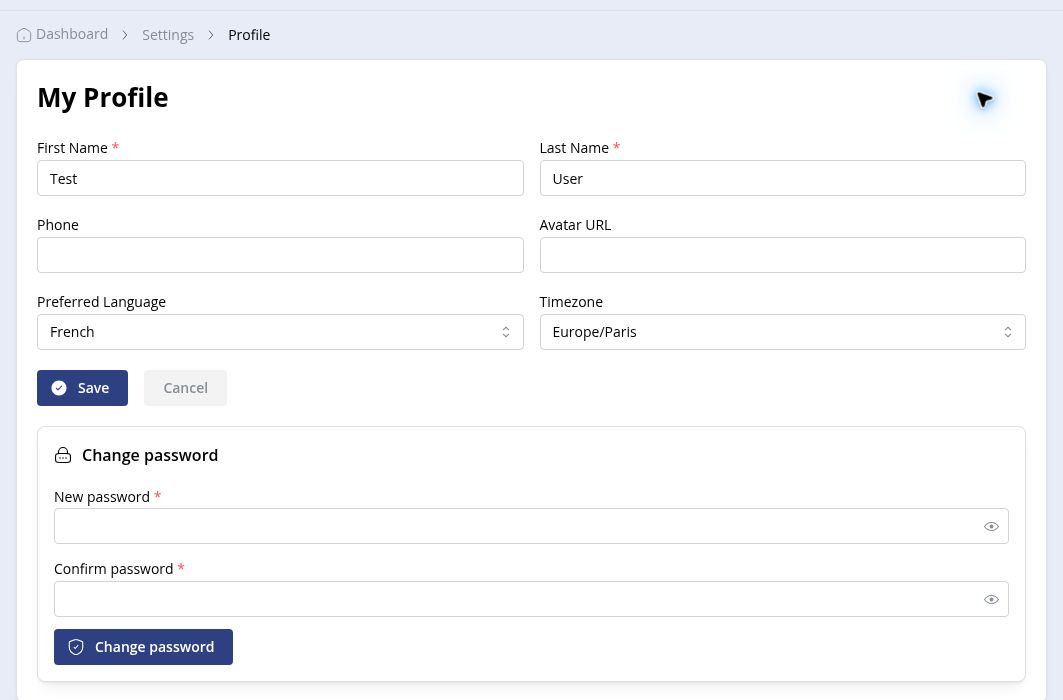
Fields displayed after selecting “Edit”.
Change your password
Section titled “Change your password”The password form is displayed below the profile information.
- Enter a value in “New password”.
- Enter the same value in “Confirm password”.
- Select “Change password”.
The password must contain at least 8 characters, including an uppercase letter, a digit, and a special character.