

Import participants
The import wizard loads a contact file and turns it into session participants, in six steps: “Upload”, “Mapping”, “Deduplication”, “Options”, “Review”, and “Progress”.
Start an import
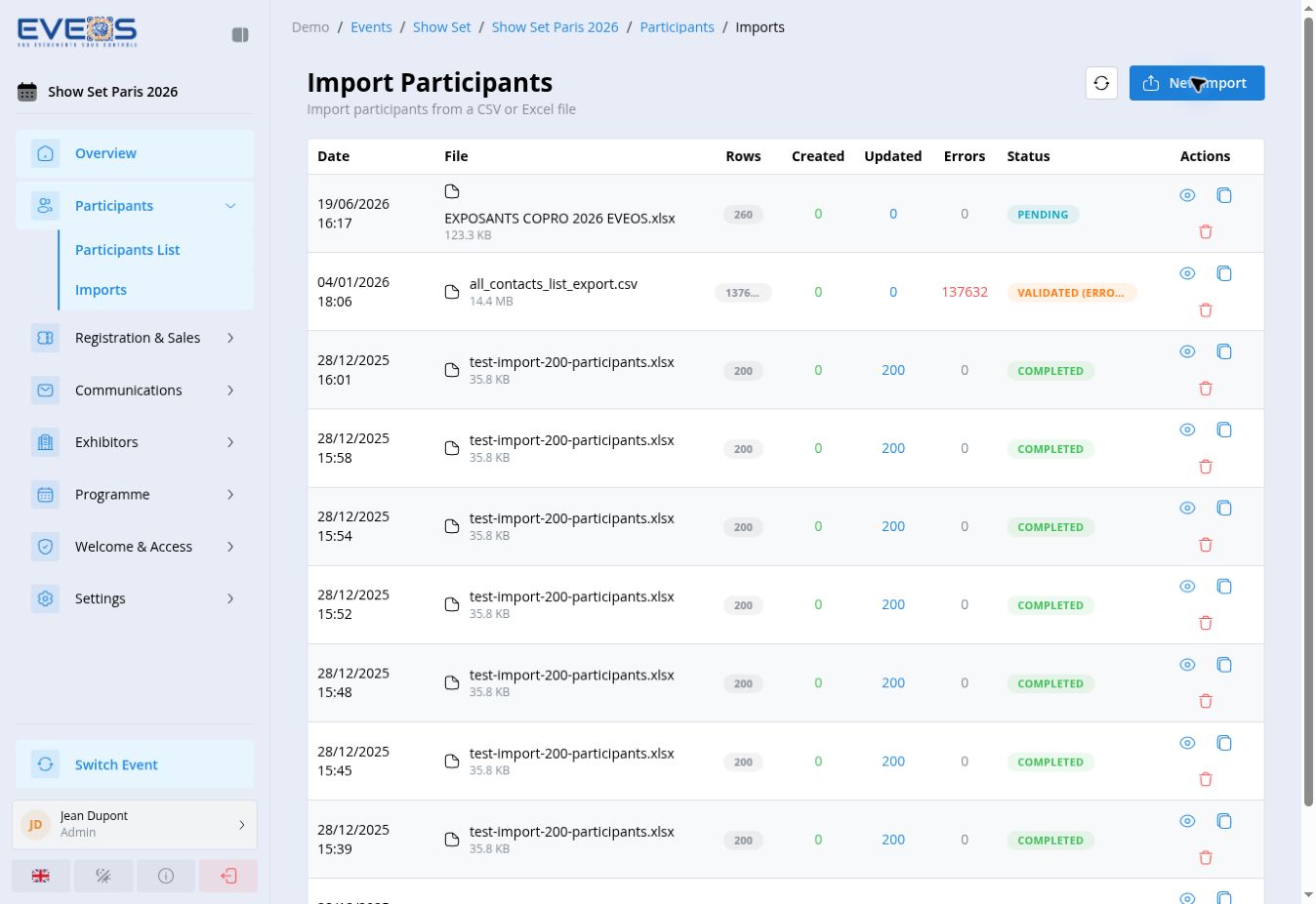
Section titled “Start an import”- Under “Participants”, open “Imports”.
- Select “New import”.
- Enter an “Import name” so you can identify it in the history.
- Select “Choose File” and choose the file.
- Select “Next”.
Accepted formats are CSV, TXT, XLS, and XLSX, with a maximum size of 50 MB.
“Mapping” step
Section titled ““Mapping” step”This step matches each file column to a participant field (identity, company, category, custom fields…):
- automatic suggestions propose a mapping based on the file headers; you can rerun them or adjust each column manually;
- each column can receive a transformation and a default value used when the cell is empty;
- the override option forces the default value onto all rows, even filled ones;
- manual fields can be added without a source column: the entered value then applies to the whole batch (for example to force a shared category or origin).
“Deduplication” step
Section titled ““Deduplication” step”Deduplication compares imported rows against existing participants:
- Enable deduplication and choose the match criteria (for example the email address), with the option to ignore case.
- Choose the action on duplicate: “Skip row”, “Update existing”, “Create anyway”, or “Mark as error”.
- If you update existing records, set the strategy: “Replace all values”, “Overwrite with non-empty values”, or “Keep existing values”.
- Choose the “If no match found” action: “Create a new record” (default behavior), “Skip row”, or “Mark as error”.
If no criterion is set, a warning requires an explicit confirmation before you can continue.
“Options” step
Section titled ““Options” step”The last options apply to the whole batch:
- Default category applied to rows without a category;
- Mark as registered to give imported participants the “Registered” status right away;
- Stop at first error to interrupt processing as soon as a row fails;
- Email notification when the import finishes;
- Origin: free text recorded as the source of the created contacts.
Review and progress
Section titled “Review and progress”The “Review” step summarizes the file, mapping, deduplication, and options before starting the processing. “Progress” then follows the row-by-row execution.
An update that doesn’t actually change any field (values already up to date) is counted separately under “Already up to date” rather than “Updated”. Those rows, along with rows skipped for lack of a match, carry a warning grouped by message in the Review step — handy for spotting, before starting the import, the rows that won’t have any effect.
Follow imports
Section titled “Follow imports”The “Participant Import” page keeps a history with the file, row count, created or updated contacts, errors, and status. Displayed states include “Pending”, “Validated (errors)”, and “Completed”.