

Manage the program
The “Program” module lets you build a session’s agenda: conferences, keynotes, workshops, round tables… Each item has a schedule, a place, a category, and speakers.
The “Program” section of the sidebar contains four pages:
- “Program” — the program items (talks, sessions);
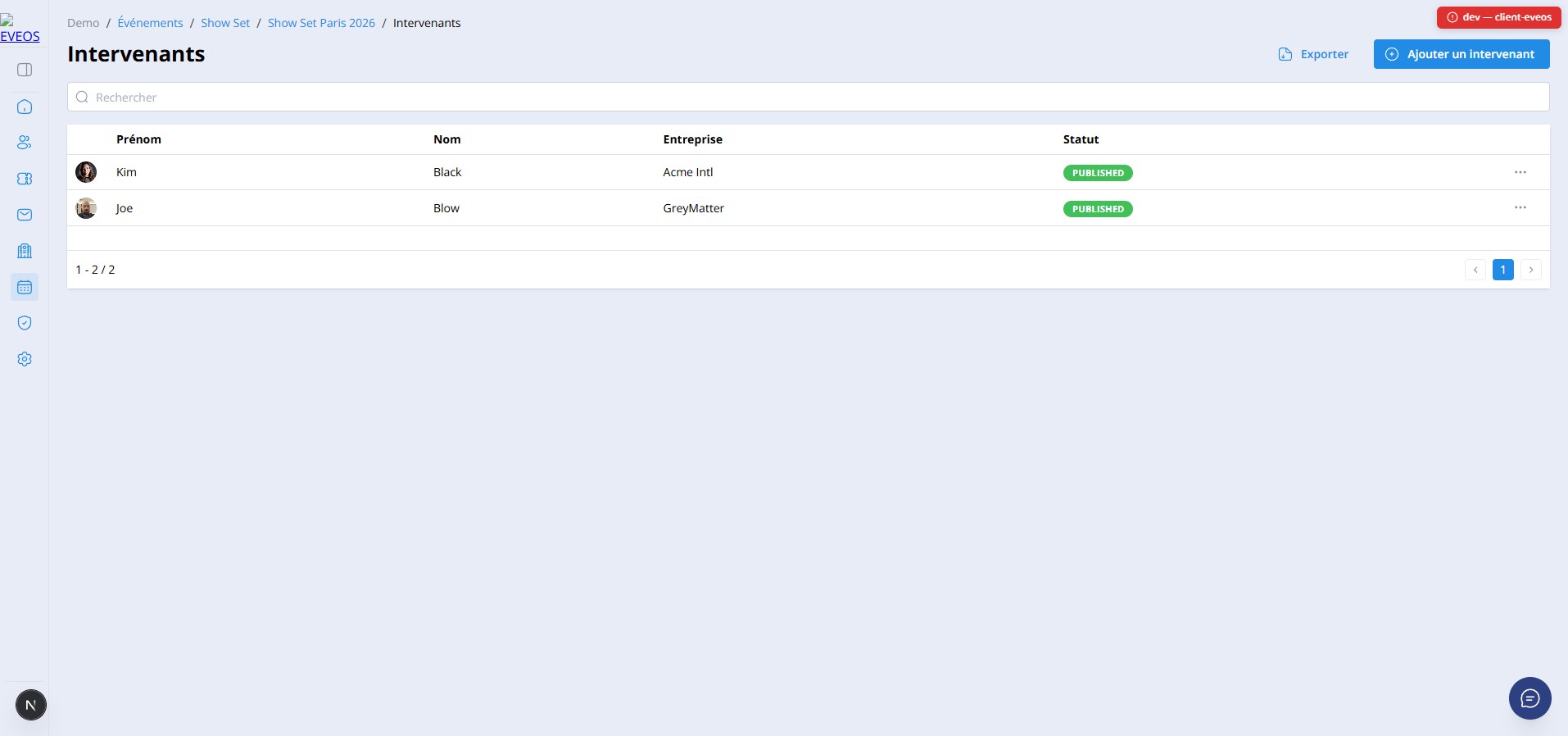
- “Speakers” — the people who speak;
- “Places” — rooms, stages, booths, and other spaces;
- “Program categories” — categories to classify and color items.
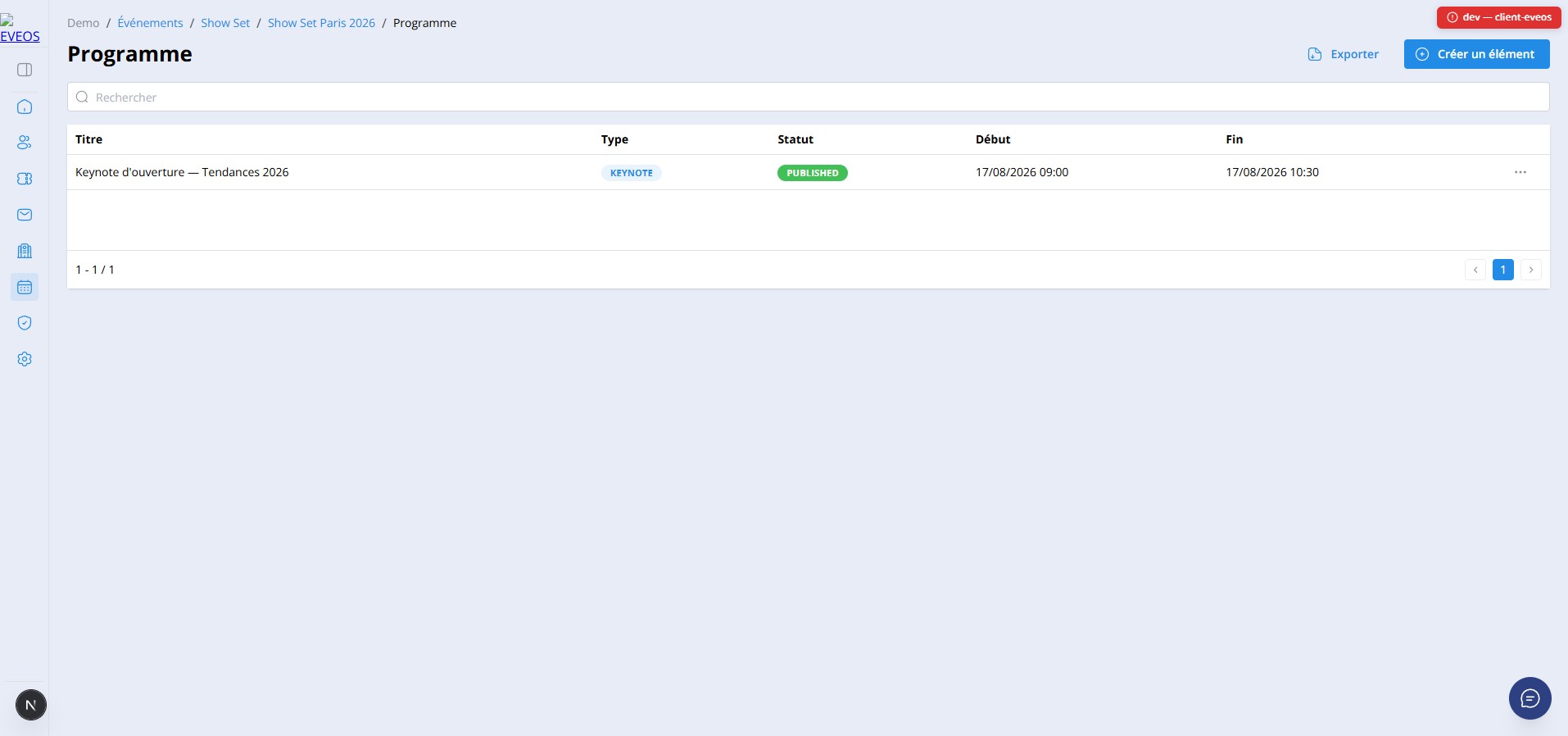
Create a program item
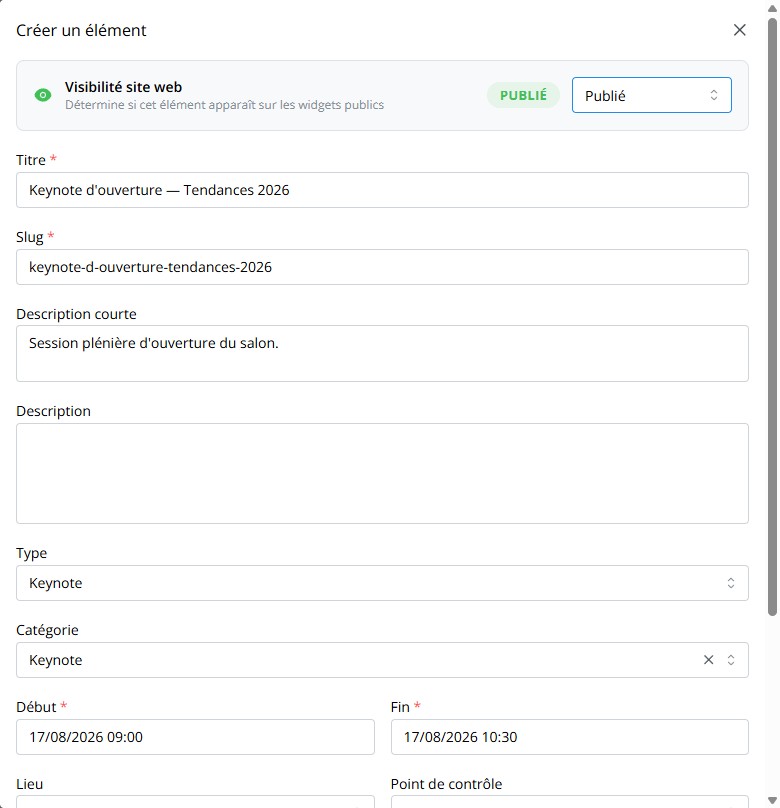
Section titled “Create a program item”- Open “Program” in the session sidebar, then select “Create item”.
- Enter the “Title” — the “Slug” is generated automatically.
- Choose the “Type” (Conference, Workshop, Keynote, Round table, Networking, Break, Ceremony, Entertainment, or Other) and optionally a “Category”.
- Set the “Start” and “End” — the end must be after the start.
- Select a “Place” and, if needed, a “Capacity” and a “Checkpoint” for access control.
- Set “Website visibility” to “Published” so the item appears on public widgets, then select “Create”.
Assign speakers
Section titled “Assign speakers”Speakers are first created in the “Speakers” page (name, company, photo, biography, social links), then assigned to program items.
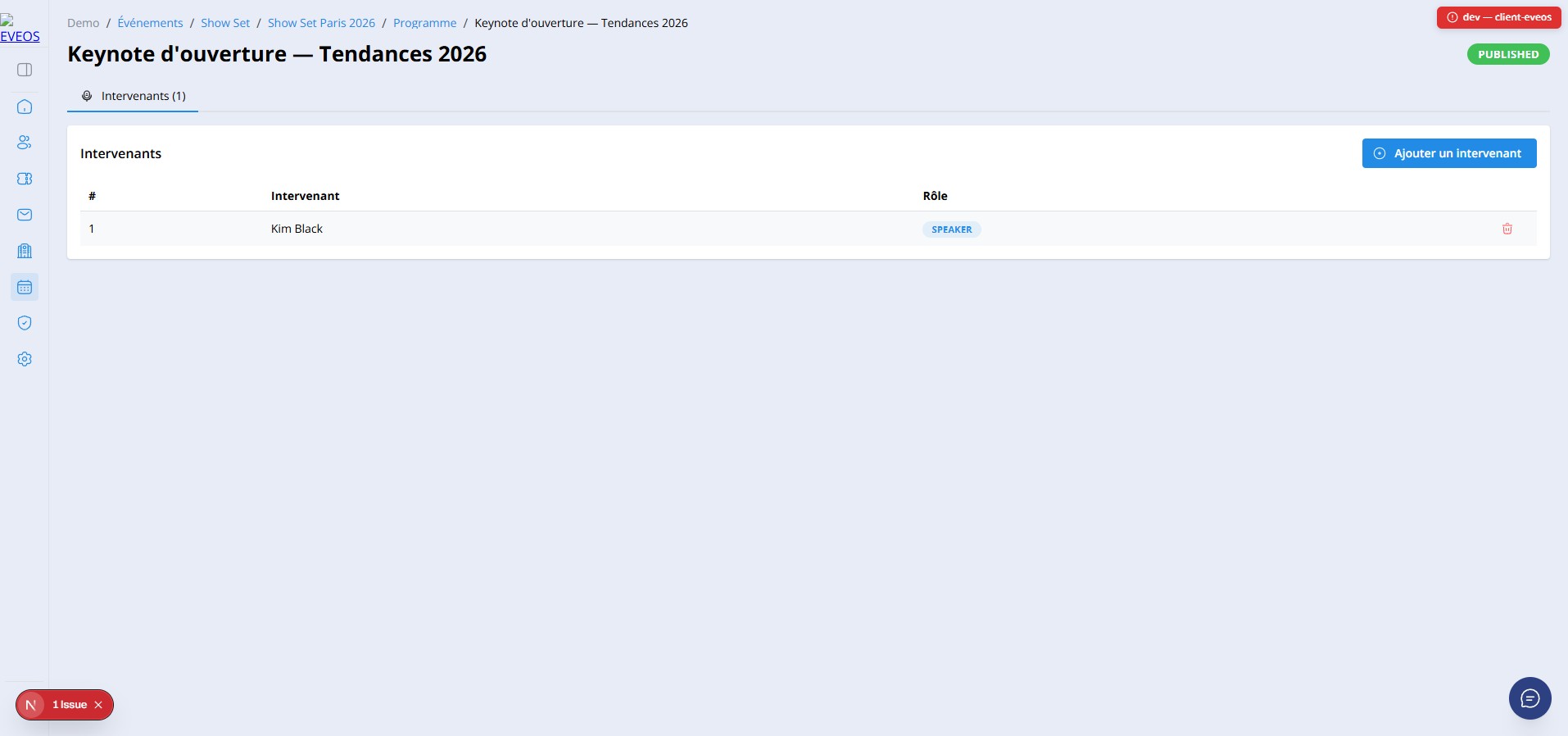
- In the program list, open an item’s “⋯” menu and choose “Speakers”.
- Select “Add speaker”.
- Pick the speaker and their “Role”: Speaker, Co-speaker, Moderator, or Host.
- Select “Add”.
Manage places
Section titled “Manage places”The “Places” page lists the session’s spaces: Room, Hall, Stage, Booth, Outdoor, Entrance hall, Virtual, or Other. Each place can have a capacity, an address, and a parent place to build a hierarchy (for example, a room inside a hall).
Manage categories
Section titled “Manage categories”“Program categories” classify items and give them a color and an icon, useful to distinguish content types in the agenda.
How your dates and times are interpreted
Section titled “How your dates and times are interpreted”When you import a file that contains dates and times (a conference program, but also any other import with schedules), Eveos needs to know what exact moment “10:00” refers to. The rule is simple: the times in your file are always read as local times of your event.
Your event’s local time is the reference
Section titled “Your event’s local time is the reference”Every session has a time zone, set in its settings (for example Europe/Paris). That time zone is the reference used by the import.
You therefore have nothing to convert: you enter the time as it will be experienced on site, and Eveos takes care of the rest.
Examples for a session set to Europe/Paris:
| Value in your file | Result displayed in Eveos |
|---|---|
04/11/2026 10:00 |
4 November 2026 at 10:00 (Paris time) |
04/11/2026 14h30 |
4 November 2026 at 14:30 (Paris time) |
04/11/2026 |
4 November 2026 at 00:00 (Paris time) |
Check the time zone before importing
Section titled “Check the time zone before importing”The session’s time zone determines how your schedules are stored. Check it in the session settings before starting the import: an event in Montreal or Dubai obviously does not use the same time zone as an event in Paris.
Accepted date formats
Section titled “Accepted date formats”You do not need a single strict format: common notations are recognised automatically.
| Value in your file | Interpretation |
|---|---|
04/11/2026 10:00 |
4 November 2026 at 10:00 |
04-11-2026 |
4 November 2026 at 00:00 |
04/11/2026 10h30 |
4 November 2026 at 10:30 |
2026-11-04T10:00 |
4 November 2026 at 10:00 (ISO format) |
4 novembre 2026 |
4 November 2026 at 00:00 (French wording) |
4 novembre 2026 9h |
4 November 2026 at 09:00 |
When the day and the month are ambiguous, the day is always read first,
following French usage: 04/11/2026 means 4 November, never 11 April.
Excel cells in Date/Time format
Section titled “Excel cells in Date/Time format”If your Excel file contains real Date or Date/Time cells, they are read as they are, including the time. No specific formatting is required: there is no need to convert your cells to text before importing.
Advanced case: dates with an explicit time zone
Section titled “Advanced case: dates with an explicit time zone”If a date in your file already specifies its own time offset, that offset is kept as is and the session’s time zone is not applied. This typically happens with files exported from another tool.
| Value in your file | Result |
|---|---|
2026-11-04T10:00:00+02:00 |
10:00 in Central European Summer Time, i.e. 09:00 in Paris |
2026-11-04T10:00:00Z |
10:00 in Coordinated Universal Time (UTC), i.e. 11:00 in Paris |
Schedules look shifted?
Section titled “Schedules look shifted?”If, after the import, all your schedules appear shifted by one or two hours:
- Open the session settings and check the event’s time zone; correct it if needed.
- Import the same file again, choosing the update duplicates option.
- The schedules are recalculated and replaced, without creating duplicates.