

Manage organizer users
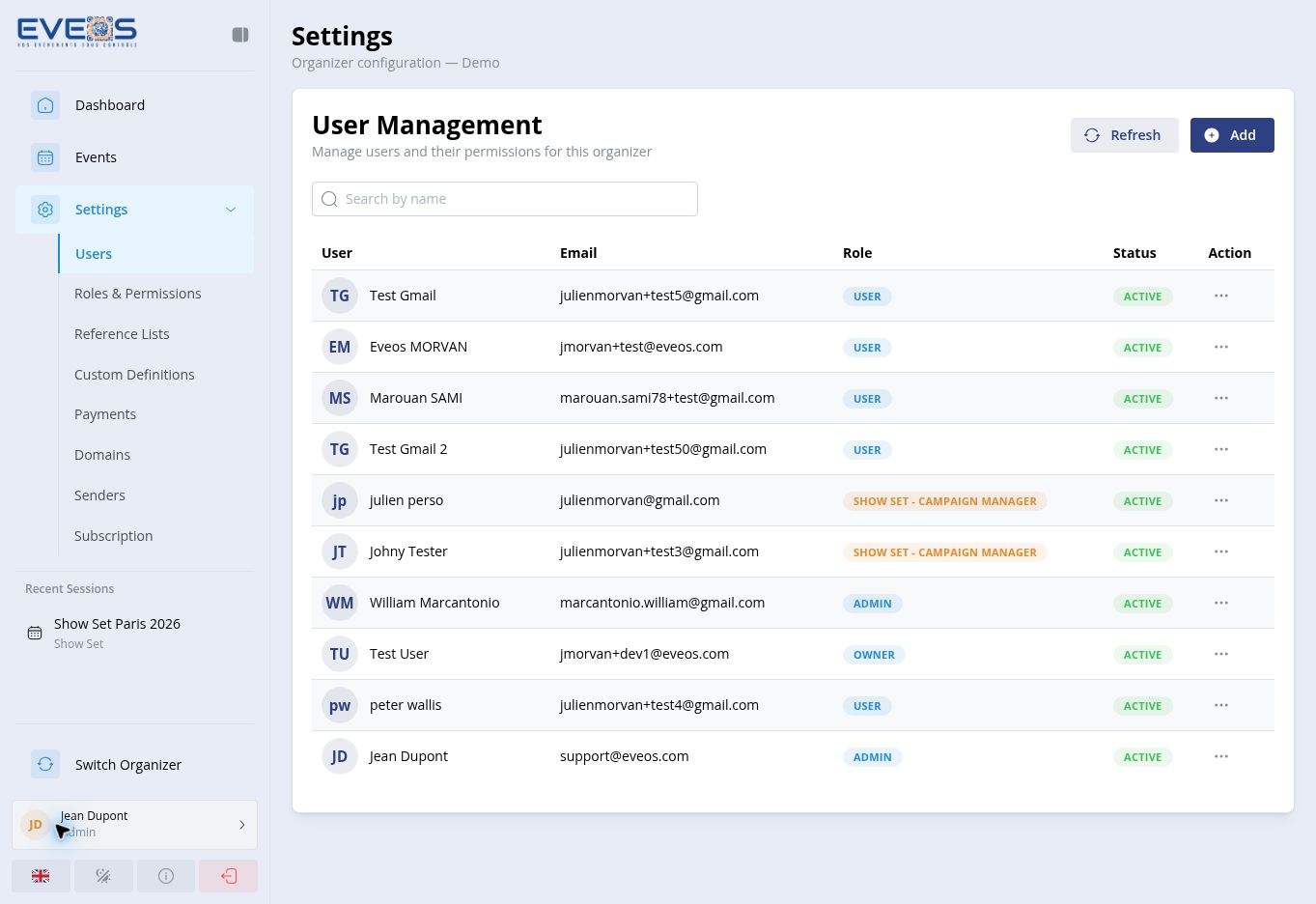
Open “Settings”, then “Users”. The “User Management” page shows each organizer member’s name, email address, role, and status (“Active” or “Inactive”).
Search and refresh the list
Section titled “Search and refresh the list”- Enter a name in “Search by name” to filter the table.
- Select “Refresh” to reload the list.
- The “Action” column offers “Change role” and “Remove user”, depending on your permissions.
Invite a user
Section titled “Invite a user”- Select “Add”.
- Enter the person’s address in “Search by email”.
- Choose the “Role to assign”.
- Select “Invite user”.
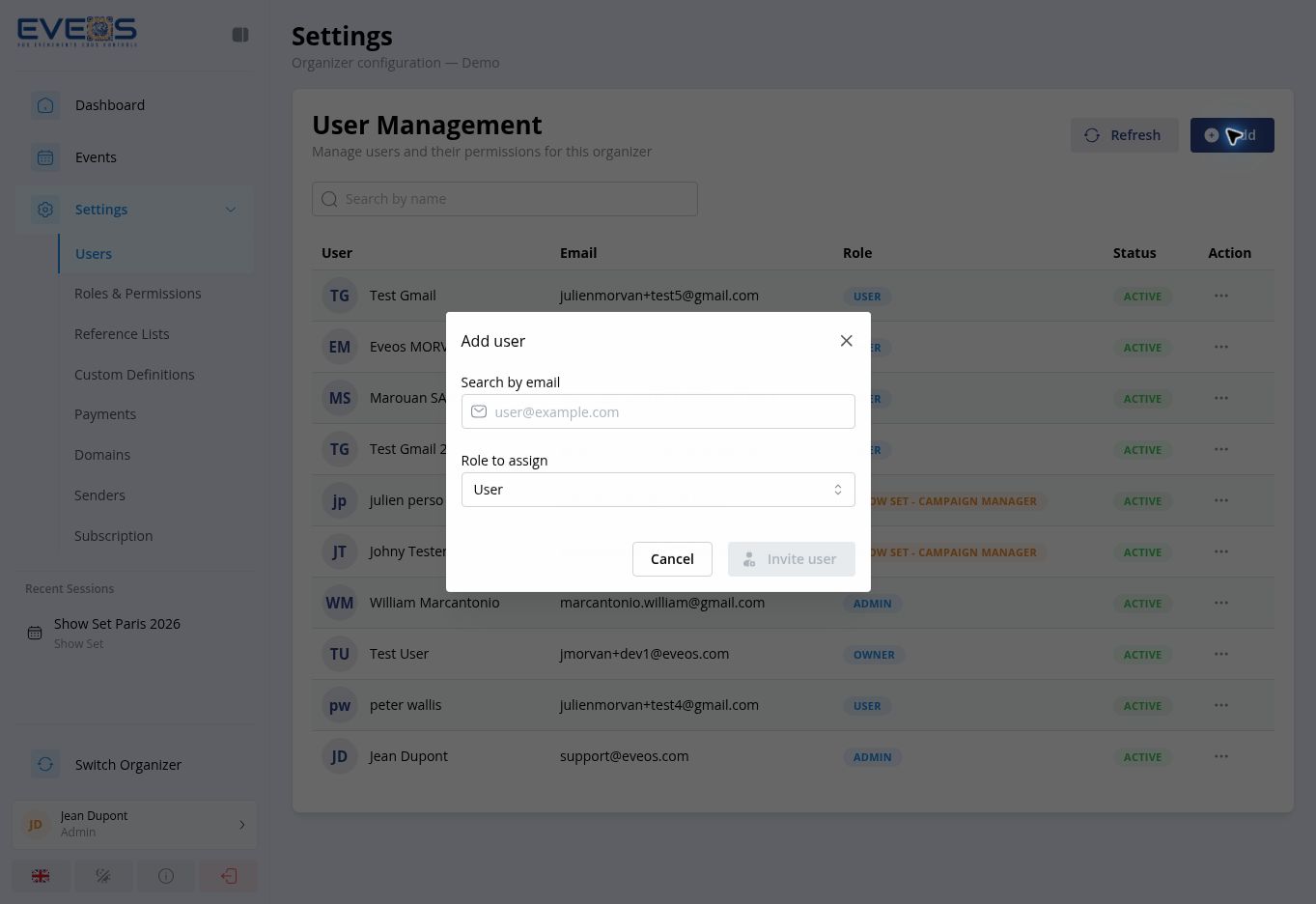
If the address matches an existing Eveos account, its card is displayed; otherwise, the message “A new user will be invited” indicates that an account will be created when the invitation is sent. Adding a user may be blocked when the subscription’s back-office user quota is reached.
The available roles include the system roles — Owner, Admin, User, Viewer, and Onsite — plus your custom roles. The selected role determines which modules and actions are available. Review Roles & Permissions before assigning a custom role.