Manage roles and permissions
Open “Settings”, then “Roles & Permissions”. The list shows how many modules are associated with each role and any project restrictions.
Eveos distinguishes system roles — Owner, Admin, User, Viewer, and Onsite — which cannot be edited, from the custom roles managed on this page.
Create a role
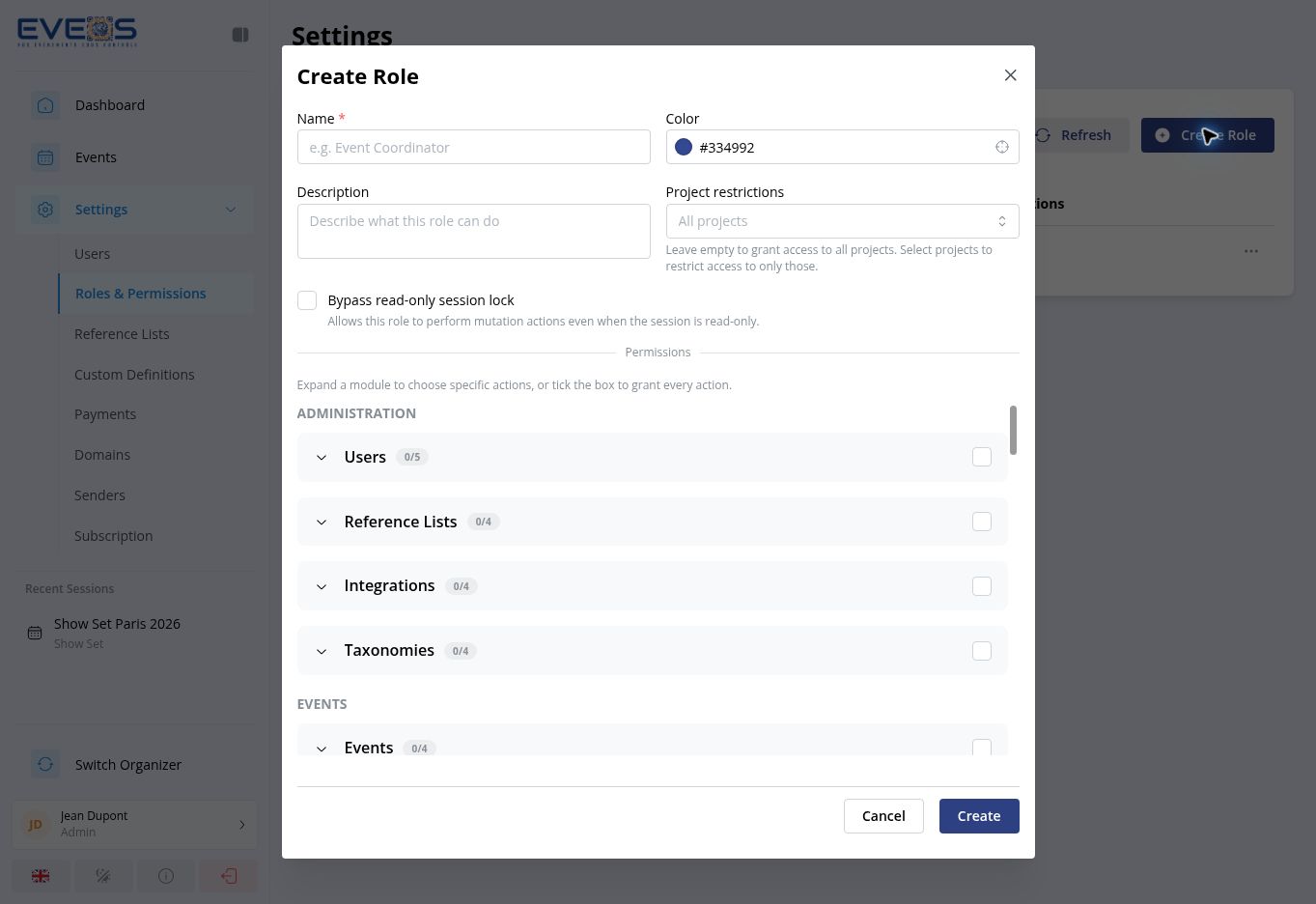
Section titled “Create a role”- Select “Create Role”.
- Enter the “Name”. You can also choose a color and add a description.
- Under “Project restrictions”, leave the selection empty for all projects or choose the relevant projects.
- Enable “Bypass read-only session lock” only if this role must bypass that lock.
- Under “Permissions”, expand a module to select actions or select the module directly.
- Select “Create”.
Within each module, the “View” action gates the others: unchecking it removes the module’s remaining actions. Besides the common actions (view, create, edit, delete, export…), some modules offer specialized actions (send a campaign, validate a registration, print a badge…).
A role still assigned to users cannot be deleted: remove it from the affected accounts first.
Permission groups
Section titled “Permission groups”The form organizes permissions into the following groups:
- “Administration”;
- “Events”;
- “Sessions & Analytics”;
- “Audience”;
- “Programme”;
- “Ticketing”;
- “Welcome & Access Control”;
- “Communication”;
- “Exhibitor Area”;
- “Data & Imports”;
- “Custom Modules”.
Review the role before assigning it from User Management.